Hands on with RIM’s BlackBerry Application Suite on the HTC Fuze
Well, it has been rumored forever, caught on video, and we’ve even done our part in sharing the news as well, but we can’t hold out on y’all any longer - we have been toying with the BAS for the greater part of a month. It’s a solid effort on RIM’s part, but will it do anything for them or just waste engineer’s precious time? The answer, friends, is in our review after the break.
Setup:
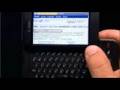
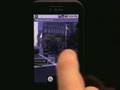
To install RIM’s BlackBerry Application Suite for Windows Mobile, you just install the program as you would like a normal Windows Mobile app. In our case, it was from a .cab file. Once it’s installed, it adds a BlackBerry icon to the Settings folder (much like BlackBerry Connect did/does) and off you go. Since the BlackBerry operating system is virtualized, it has to boot up like a normal BlackBerry device. There’s two parts to the BlackBerry OS starting. First, TouchFLO 3D has to be disabled for it to run. We’re not sure whether this is to keep memory usage down or for another technical limitation, but it’s really not the end of the world seeing as RIM hopes to keep you on the BlackBerry side as much as possible. The second feature is that you can configure the BlackBerry portion to start at Windows Mobile bootup, effectively telling Microsoft to go jump in a lake - nice. Finally, you just choose your keyboard layout (Touch Pro QWERTY, Fuze QWERTY, or Touch Pro AZERTY) and the application starts.

 :
: